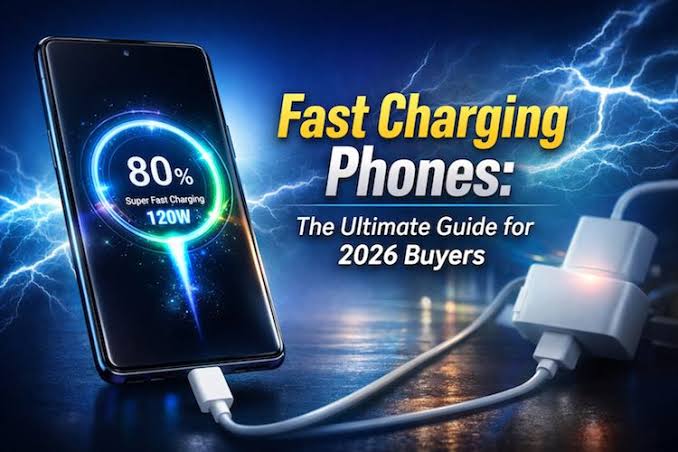
Best Fast Charging Settings for Android (2026): Complete Guide to Improve Charging Speed Safely
Meta Title: Best Fast Charging Settings for Android (2026) – Improve Charging Speed Safely
Meta Description: Learn the best fast charging settings for Android in 2026. Discover practical tips to charge your phone faster, protect battery health, and fix slow charging issues.
Best Fast Charging Settings for Android
Introduction
Fast charging has become one of the most important features of modern Android smartphones. Whether you use your phone for work, gaming, streaming, or social media, waiting hours for a full charge can be frustrating. Fortunately, Android devices include several settings and optimization features that can help improve charging performance while protecting long-term battery health.
Many users believe fast charging depends only on buying a powerful charger. In reality, charging speed is influenced by multiple factors, including battery settings, software optimization, charger compatibility, cable quality, device temperature, and background activity. Understanding these factors can help you achieve the best possible charging speed without risking damage to your battery.
This guide explains the best fast charging settings for Android, common charging mistakes, practical optimization tips, and battery care recommendations that can help your device perform at its best.
How Android Fast Charging Works
Fast charging is a technology that allows compatible chargers and smartphones to transfer more power than traditional charging methods. Your phone communicates with the charger to determine the safest charging speed.
Charging speed depends on:
- Original charger support
- USB cable quality
- Battery temperature
- Android software optimization
- Battery health
- Background apps
- Charging protocol compatibility
If one of these factors is limited, charging speed automatically decreases to protect your device.
Enable Fast Charging Settings
Many Android phones provide an option to enable fast charging.
Check Battery Settings
Go to:
Settings → Battery → Charging
Depending on your phone, you may see options such as:
- Fast Charging
- Super Fast Charging
- Turbo Charging
- Rapid Charging
- Ultra Fast Charging
Keep these options enabled whenever available.
Keep Software Updated
Software updates often improve battery management and charging efficiency.
To update Android:
Settings → System → Software Update
Install official updates whenever available.
Benefits include:
- Better battery optimization
- Improved charging algorithms
- Bug fixes
- Enhanced thermal management
Reduce Background Apps
Background applications continue consuming power while your phone charges.
To reduce power usage:
- Close unnecessary apps.
- Disable auto-sync for unused accounts.
- Stop large downloads.
- Pause cloud backups.
- Disable apps you rarely use.
Lower power consumption allows more charging power to reach the battery.
Enable Battery Optimization
Battery optimization helps Android reduce unnecessary background activity.
Navigate to:
Settings → Battery → Battery Optimization
Keep optimization enabled for most applications.
This reduces CPU usage and improves charging efficiency.
Use Battery Saver When Charging
Although Battery Saver is mainly designed to extend battery life, it also reduces background activity.
Battery Saver can:
- Reduce background refresh
- Lower CPU usage
- Reduce animations
- Limit location services
These changes allow more incoming power to recharge the battery.
Turn On Airplane Mode
Airplane Mode disables:
- Mobile network
- Wi-Fi
- Bluetooth
- GPS (on many devices)
When network activity stops, the phone consumes less power.
If you do not need calls or internet while charging, Airplane Mode may slightly improve charging speed.
Reduce Screen Brightness
The display is one of the largest power consumers.
While charging:
- Lower brightness.
- Enable Auto Brightness.
- Turn off Always-On Display if available.
- Lock the screen.
This reduces power usage and allows the battery to charge more efficiently.
Avoid Heavy Gaming During Charging
Gaming generates heat and increases CPU and GPU usage.
Heat forces Android to reduce charging speed to protect the battery.
Avoid:
- High-end games
- Video editing
- Large downloads
- 4K video recording
Wait until charging finishes before using demanding applications.
Keep Your Phone Cool
Temperature greatly affects charging speed.
If your phone becomes too hot:
- Charging automatically slows down.
- Battery protection activates.
- Performance may decrease.
Tips:
- Remove thick phone cases while charging.
- Keep the phone in a cool environment.
- Avoid direct sunlight.
- Never place the phone under pillows or blankets.
Use the Original Charger
Original chargers are specifically designed for your phone.
Benefits include:
- Correct charging voltage
- Stable power delivery
- Better safety
- Full fast charging support
Cheap chargers may reduce charging speed and can damage the battery over time.
Choose a High-Quality USB Cable
A damaged or low-quality cable can significantly reduce charging speed.
Replace cables that:
- Charge intermittently
- Feel loose
- Have broken insulation
- Become unusually hot
Certified cables provide more stable charging performance.
Clean the Charging Port
Dust inside the USB port may interrupt charging.
Signs include:
- Loose charging cable
- Slow charging
- Frequent charging interruptions
Use a soft brush or compressed air to clean the port gently.
Avoid metal objects that could damage the connector.
Disable Unnecessary Connectivity
If you do not need wireless connections while charging, temporarily disable:
- Bluetooth
- NFC
- Nearby Share
- Mobile Hotspot
Reducing background communication slightly decreases power consumption.
Keep Battery Health Strong
Battery health naturally decreases with age.
To maximize lifespan:
- Avoid completely draining the battery.
- Charge between 20% and 80% when possible.
- Avoid excessive heat.
- Use official accessories.
- Keep Android updated.
Healthy batteries maintain fast charging performance longer.
Common Reasons Your Phone Charges Slowly
Several factors can slow charging.
These include:
- Weak charger
- Faulty cable
- Background applications
- High battery temperature
- Dirty charging port
- Battery aging
- Outdated software
- Non-compatible charger
Identifying the real cause makes troubleshooting easier.
Brand-Specific Charging Features
Samsung
Samsung devices may support:
- Fast Charging
- Super Fast Charging
- Protect Battery Mode
Enable Fast Charging in Battery Settings.
Xiaomi
Many Xiaomi phones support:
- Turbo Charge
- HyperCharge
Use the original Xiaomi charger for maximum charging speed.
Oppo
Oppo devices often include:
- VOOC
- SuperVOOC
Only compatible chargers provide full charging performance.
Vivo
Vivo smartphones support FlashCharge on many models.
Use official accessories for the best results.
Realme
Realme devices include:
- Dart Charge
- SuperDart Charge
Avoid third-party chargers that do not support these technologies.
OnePlus
OnePlus phones use:
- Warp Charge
- SUPERVOOC (newer models)
Official chargers deliver the highest charging speed.
Charging Mistakes to Avoid
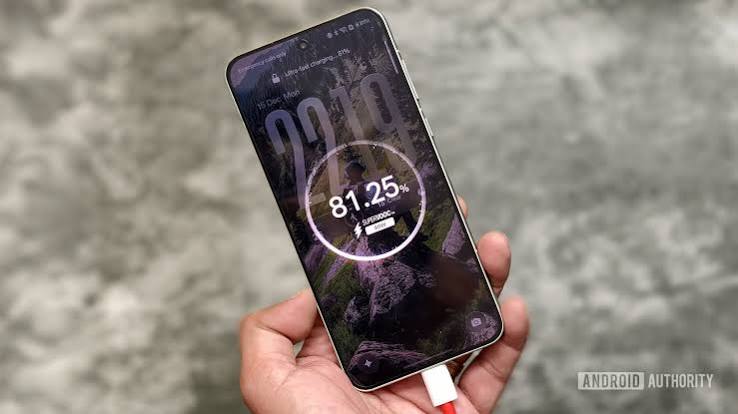
Many users unknowingly reduce charging speed.
Avoid these mistakes:
- Using fake chargers
- Charging in direct sunlight
- Playing games while charging
- Ignoring software updates
- Using damaged cables
- Charging on soft surfaces
- Keeping dozens of apps running
Small improvements can significantly enhance charging performance.
Frequently Asked Questions
Does Airplane Mode charge faster?
Yes. It reduces power consumption and may slightly improve charging speed.
Is Fast Charging Safe?
Yes. Modern Android phones automatically manage charging speed to protect the battery when used with compatible chargers.
Can background apps slow charging?
Yes. Heavy background activity consumes power and may reduce effective charging speed.
Should I charge overnight?
Most modern phones stop charging when full, but avoiding unnecessary overnight charging can help preserve long-term battery health.
Does heat affect charging?
Yes. High temperatures are one of the biggest reasons charging slows down.
Conclusion
Improving Android charging speed is not just about buying a higher-wattage charger. The best results come from combining proper settings, quality charging accessories, software updates, and healthy charging habits. Keeping Fast Charging enabled, reducing background activity, using the original charger and cable, maintaining a cool device temperature, and following good battery care practices can help you enjoy faster charging while extending your battery’s lifespan.
By applying the tips in this guide, you can optimize your Android device for safe, efficient, and reliable fast charging throughout 2026 and beyond